Jenny Mod on Bedrock and mobile: what actually works
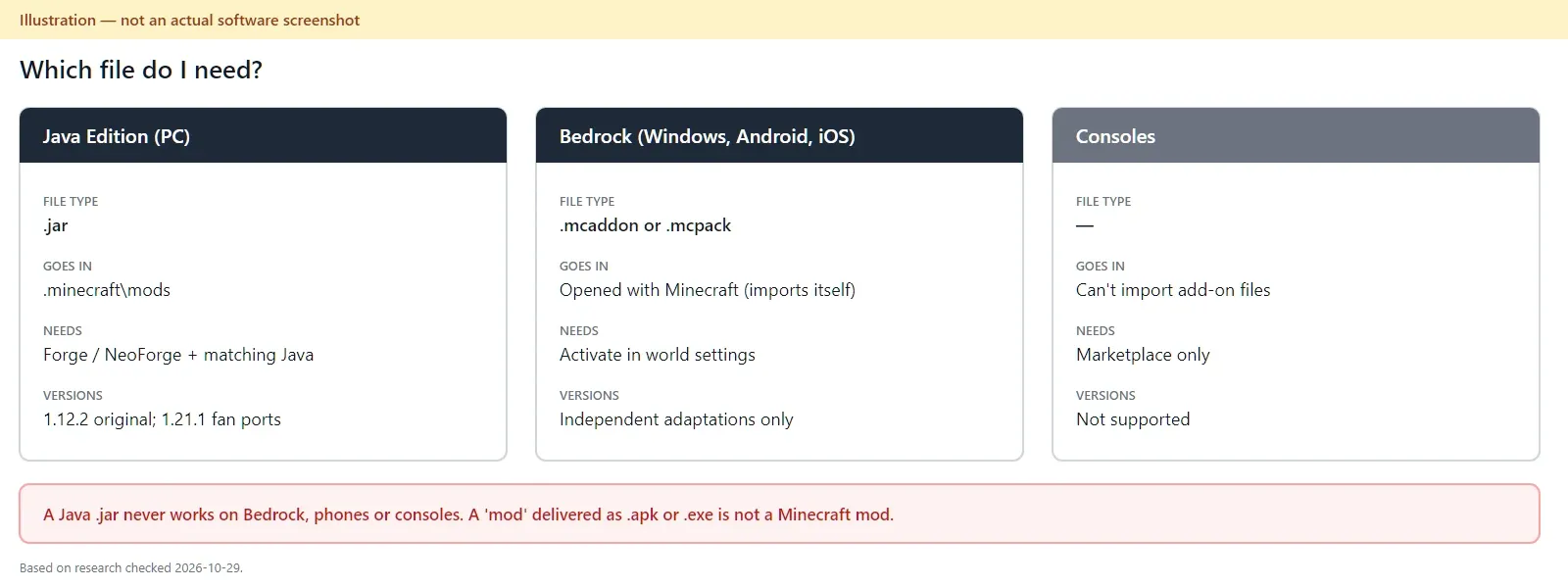
The original Jenny Mod is a Java mod and cannot run on Bedrock. 'Jenny' add-ons for Bedrock are independent adaptations by other people. Here is how they work on each device, and which files to refuse.
New to the mod? Start with our complete Jenny Mod guide. Looking for the file? Go to the Jenny Mod download section.
Why the Java mod won't load on Bedrock
Minecraft has two main editions. Java Edition runs on Windows, macOS and Linux and supports mods through loaders such as Forge. Bedrock Edition runs on Windows (the Microsoft Store version), Android, iPhone, iPad and consoles. It does not load Java mods at all. Instead it uses add-ons: behavior packs and resource packs.
So a "Jenny Mod MCPE" or "Jenny Mod Bedrock" download is never the original mod. At best it is a separate add-on made by another author to imitate it, usually with fewer features. Who made a given add-on, and with what permission, is often unclear.
.mcpack, .mcaddon and why an APK is a red flag
Microsoft's documentation for add-on creators defines the file types Bedrock imports:
| Extension | What it is | Safe to open? |
|---|---|---|
.mcpack | A zipped resource pack or behavior pack. | Expected type |
.mcaddon | A zip containing one or more .mcpack or .mcworld files. This is how add-ons are usually shared. | Expected type |
.mcworld | A complete world. | Expected type |
.mctemplate | A world template. | Expected type |
.apk | An Android app. It is not an add-on format and is never needed to add content to Minecraft. | Red flag |
.exe / .bat | Windows programs. No Minecraft add-on or mod needs one. | Red flag |
Some listings are titled like "Jenny Add-on (Fapcraft) APK MCPE". An APK installs a separate app with its own permissions on your phone. Real Bedrock add-ons are .mcpack or .mcaddon files that open inside Minecraft.
Windows (Bedrock Edition)
- Make sure the file ends in
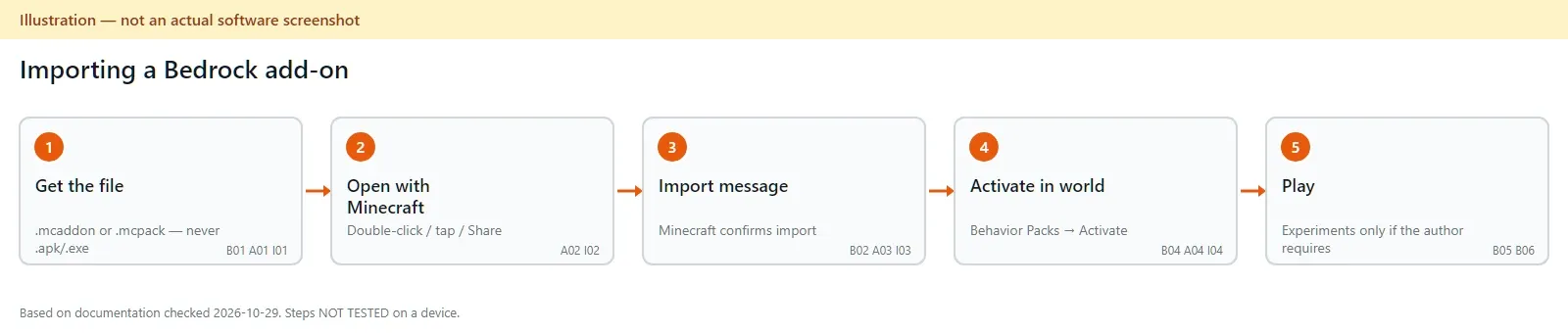
.mcaddonor.mcpack. If your browser saved it as.zip, rename the extension back. - Double-click the file. Minecraft opens and shows an import message.
- If the file opens in Word or another program instead, right-click it, choose Open with, select Minecraft and tick "Always use this app".
- Activate the pack in a world (see activating the pack).
Android (MCPE / Pocket Edition)
Getting the Jenny Mod on Minecraft PE means installing a Jenny add-on (a .mcaddon or .mcpack file),
never an app. Here is how it works on an Android phone or tablet:
- Download the
.mcaddonor.mcpackfile. Refuse anything ending in.apk. - Open your Downloads, tap the file and choose Minecraft when asked which app to use.
- Wait for the "Import started… / Successfully imported" message.
- Activate the pack in a world.
iPhone and iPad
- Save the
.mcaddonor.mcpackfile to the Files app. - Tap the file. If it does not open Minecraft, use Share and pick Minecraft.
- Wait for the import message, then activate the pack in a world.
Third-party guides report that large packs can fail to import on iPhone when storage is low. We have not confirmed this.
Activating the pack in a world
Community guides agree on this path, though Bedrock menus changed several times in 2024–2026 and the exact labels may differ on your version:
- Tap Play, then the pencil (edit) icon next to a world, or create a new world.
- In the left sidebar, open Behavior Packs. Depending on your version, the list is called "Available" or "My Packs".
- Select the pack and tap Activate. The matching resource pack is usually activated with it.
- Turn on Experiments only if the pack's author says it needs them, and back up the world first.
Xbox, PlayStation and Switch
Consoles cannot import add-on files. There is no supported way to sideload a .mcpack on Xbox,
PlayStation or Nintendo Switch, so any "Jenny Mod for Xbox/PS4/Switch" offer is either a Marketplace item made by
someone else or not genuine.
Back up a world, or remove an add-on
Bedrock menus have moved around between versions, so labels may differ slightly on yours.
Back up a world first
Edit the world, open its settings and choose Export World. You get a single .mcworld file; opening it later imports a full copy.
Turn off or delete an add-on
- Turn it off for one world: edit the world, open Behavior Packs (and Resource Packs), select the active pack and choose Deactivate.
- Delete it from your device: go to Settings → Storage, find the pack and delete it.
- Remove any app you installed for it. If an "add-on" came as an
.apk, uninstall that app and scan your phone. Next steps.
Common Bedrock problems
| Symptom | Likely cause | Fix |
|---|---|---|
| File opens in Word | Windows file association | Open with → Minecraft → Always |
Downloaded as .zip | Browser renamed it | Rename to .mcaddon or .mcpack |
| Pack is greyed out | Built for a newer game version | Update Minecraft |
| "Import failed" | Damaged or fake file | Delete it and check the source |
Our test results
File hashes, malware-scan results and device tests appear here as soon as each check is complete. Until then, every step on this page is built on official documentation and labelled exactly that way.